

Before we start…
You have a perfect scan idea in mind, but turning it into code feels hard. Maybe you tried before and only got errors, or maybe you don't know where to begin. Good news: the platform lets you build scans without any coding.
Bottom line: No programming skills are required. Open the Advanced Scan Workbench from the Scans & Alerts menu and follow the steps below.
I Know Which Indicators I Want, But I Can't Code Them
You may have several technical or fundamental indicators in mind, but putting them together often creates small mistakes—missing commas, extra brackets, wrong values. Even if the scan runs, it might not do what you expect.
Three easy steps to fix it
1 – Choose your indicators in the Scan Components panel (Standard mode).

2 – Tweak the code in the Scan Criteria panel if needed.
3 – Press Validate & Explain to check for errors.

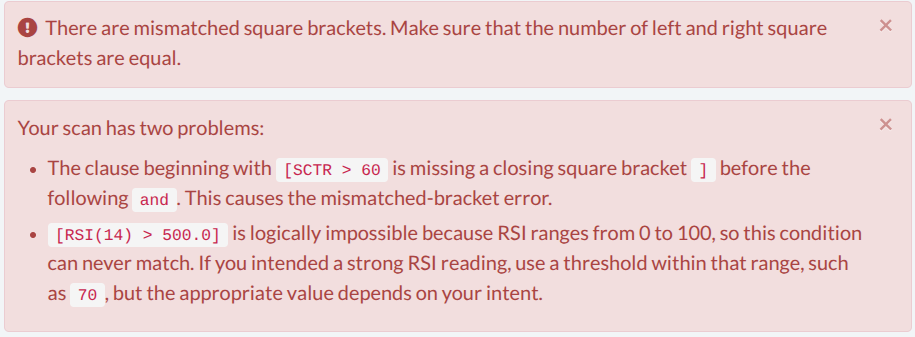
The validator tells you exactly what is wrong and how to fix it. For example, I typed RSI > 500 by mistake and missed a closing bracket. The tool highlighted both issues.

After correcting the errors, the scan validates and the Explain button shows a plain‑language summary of what the scan will find.
This saved me from using the wrong indicator. I thought a high Williams Money Flow meant overbought, but it actually signals strong buying. The explanation stopped a costly mistake.
I Know What I Want to Find, But Not Which Indicators to Use
Sometimes the goal is clear, but the exact formula isn’t. Imagine you need S&P 500 stocks that are pulling back yet still in a long‑term uptrend with solid earnings growth.
Three simple steps with the AI Wizard
1 – Switch the Scan Components panel to AI Wizard mode. Type your request in plain English, e.g., “S&P 500 stocks in a correction but still in a longer‑term uptrend with strong earnings growth.”


2 – Click the arrow to let the wizard write the scan and explain it. Then press Apply to move the code into the Scan Criteria panel.
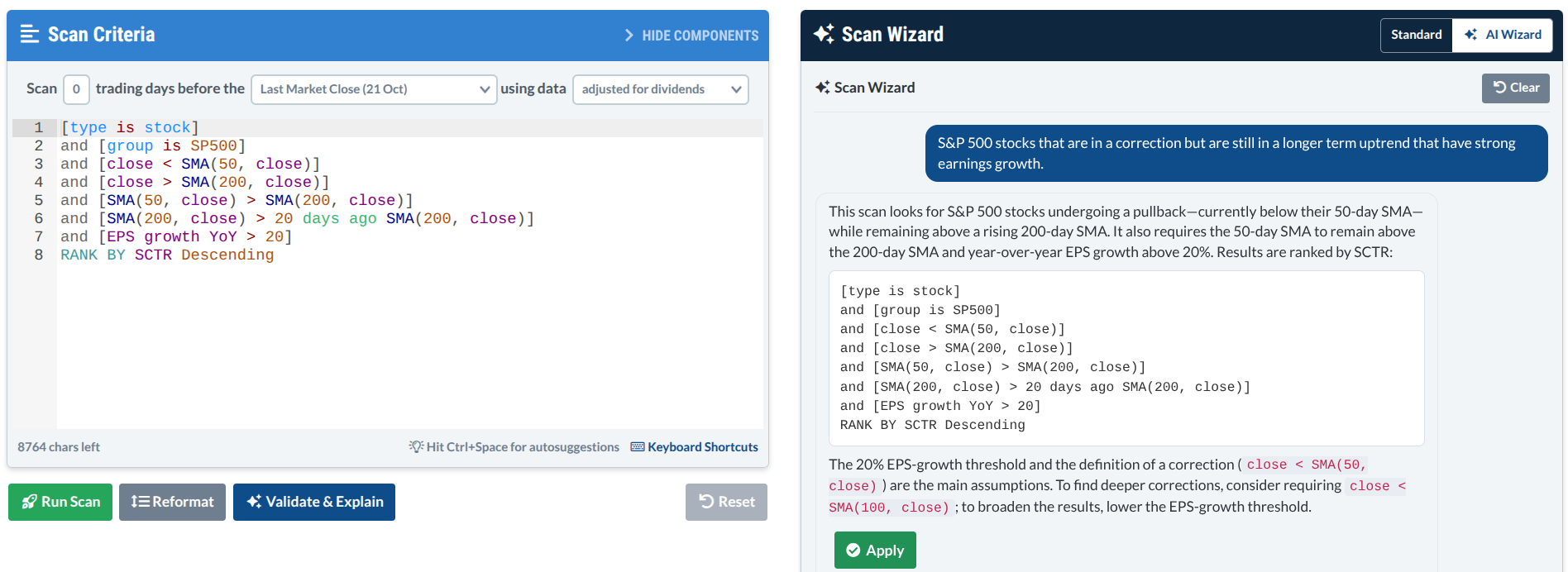
3 – Use Validate & Explain again to be sure the scan is error‑free and matches your intention.
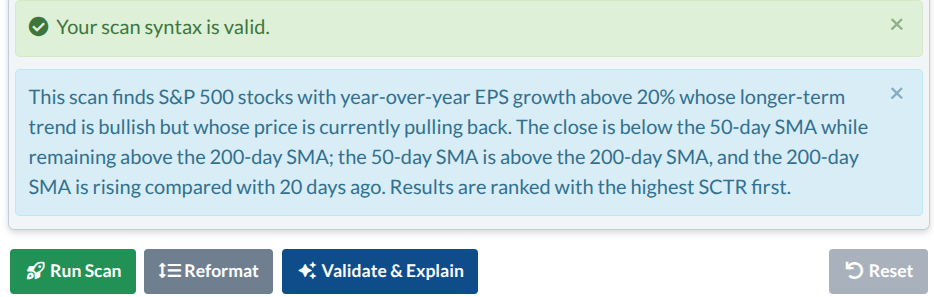
The scan ran cleanly and returned 29 stocks at the time of testing. Numbers will change as market conditions shift.
Try it yourself and tweak the wording until you get the results you need.
Insider Tip #1: Be Specific for Better Results
The wizard can work with vague ideas, but it must guess the details. The more precise your request, the more accurate the scan.
Insider Tip #2: Review the Wizard’s Assumptions
If the AI picks a 50‑day moving average for a “price correction,” you can change it to 100 days or any value you prefer.
Insider Tip #3: Combine Both Modes
You don’t have to choose one method. Build a scan in Standard mode, then let the AI wizard suggest improvements, or start with the wizard and fine‑tune manually.
That’s All
Whether you know the exact indicators or just the outcome you want, the Advanced Scan Workbench and AI Wizard let you create custom scans without writing a single line of code. The built‑in validator and explanation tools keep you safe from mistakes and show exactly what each scan does.
Disclaimer: This guide is for educational purposes only and does not constitute investment advice.
Source: Materials provided by https://articles.stockcharts.com.Note: Content may be edited for style and length.